How to add a post-purchase survey to Shopify (2026 setup guide)
Shopify has no built-in post-purchase survey, and the old Additional scripts box no longer works. Here's how to add one to the Thank you and Order status pages with an app block, preview it without a test order, and send the answers somewhere useful.
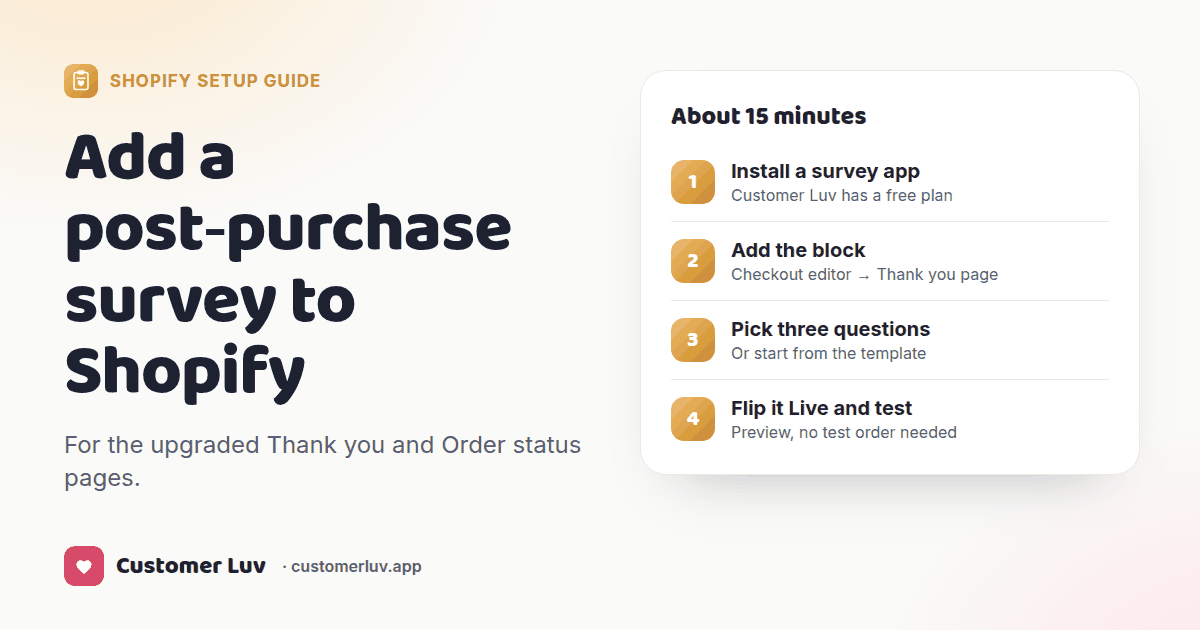
- Install a post-purchase survey app.
- In Shopify, go to Settings → Checkout → Customize, choose the Thank you page, click Add section → Apps, add the survey block and Save.
- Do the same on the Order status page.
- Write up to three questions in the app, switch the survey on and preview it in the checkout editor.
It works on every Shopify plan except Starter and takes about 15 minutes.
Where a post-purchase survey can go
"Post-purchase" covers three places. Most stores start on the Thank you page, because every buyer sees it once, seconds after paying.
| Where | Who sees it | When | Best for |
|---|---|---|---|
| Thank you page | Every buyer, once | Seconds after paying | Attribution, why they bought, who it's for |
| Order status page | Buyers who come back from the confirmation or shipping email | Hours to days later | A second chance to answer, delivery questions |
| Email or text link | Whoever opens it | After delivery | How the product is working, NPS, reorder timing |
This guide covers the first two, which run inside Shopify's checkout. The third is a link in an email or text; Customer Luv can run a question set that way too.
What changed in 2025 and 2026
Older guides tell you to paste a survey script into the Additional scripts box under Settings → Checkout. That box belonged to the old Thank you and Order status pages, which Shopify has now retired. Plus stores moved first, and Shopify auto-upgraded the remaining stores on August 26, 2026. Script-based surveys stopped working at that point.
On the new pages, a survey is an app block that you place in the checkout editor, like a section in your theme. Two things follow from that:
- Any plan except Shopify Starter can use it. Shopify's developer docs say extensions on the pages after purchase are "available to all plans except Shopify Starter". Plus is only needed for the checkout steps before payment.
- The survey takes on your checkout's design. Apps can't add their own CSS there, so colors, fonts and corners come from the checkout editor's branding settings.
Set it up, step by step
These steps use Customer Luv Surveys, which has a free plan. With another app, steps 2 and 3 are the same; only the block's name changes.
- Install a survey app. Install Customer Luv Surveys from the Shopify App Store and open it from Apps in your admin. The free plan covers one question set of three questions and 100 responses a month.
- Add the survey block to the Thank you page. Go to Settings → Checkout → Customize. In the page picker at the top, choose Thank you. In the left sidebar, click Add section → Apps → Post-purchase survey, then Save.
- Add it to the Order status page too. Switch the page picker to Order status and add the same block there, so buyers who come back from their confirmation email can still answer.
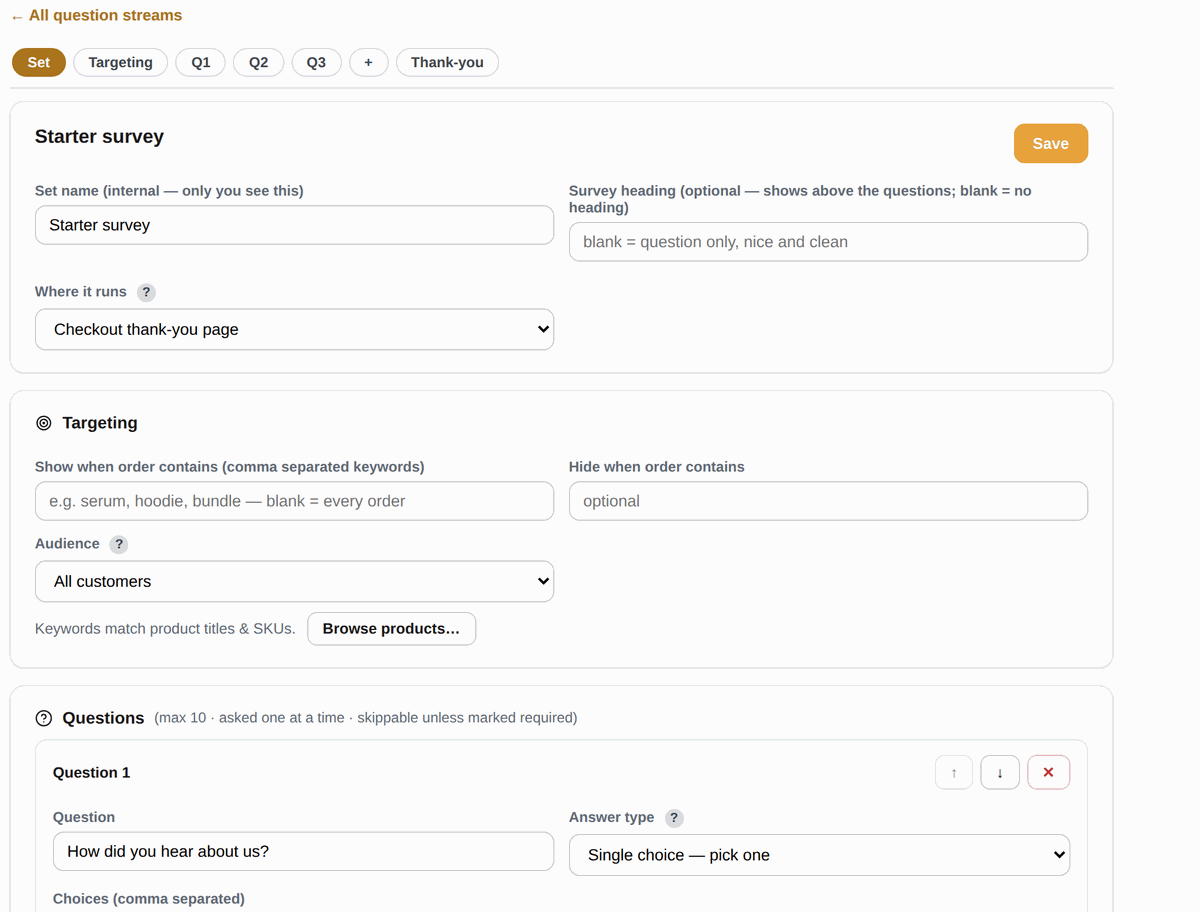
- Write your questions. In the app, click Use the starter template (three questions: how did you hear about us, age range, what almost stopped you) or Add recommended sets. Sets arrive switched off.
- Choose who sees it. Leave targeting blank to ask every order, or show the set only when the order contains certain products, or only to first-time or returning buyers.
- Connect Klaviyo. In Integrations → Klaviyo, paste your six-character public API key. Shopify tags, metafields and Flow need no setup.
- Flip it Live and preview. Switch the set to Live, then click Thank-you page in the app. It opens the checkout editor's preview with a sample order, so you can see the survey without placing a test order.
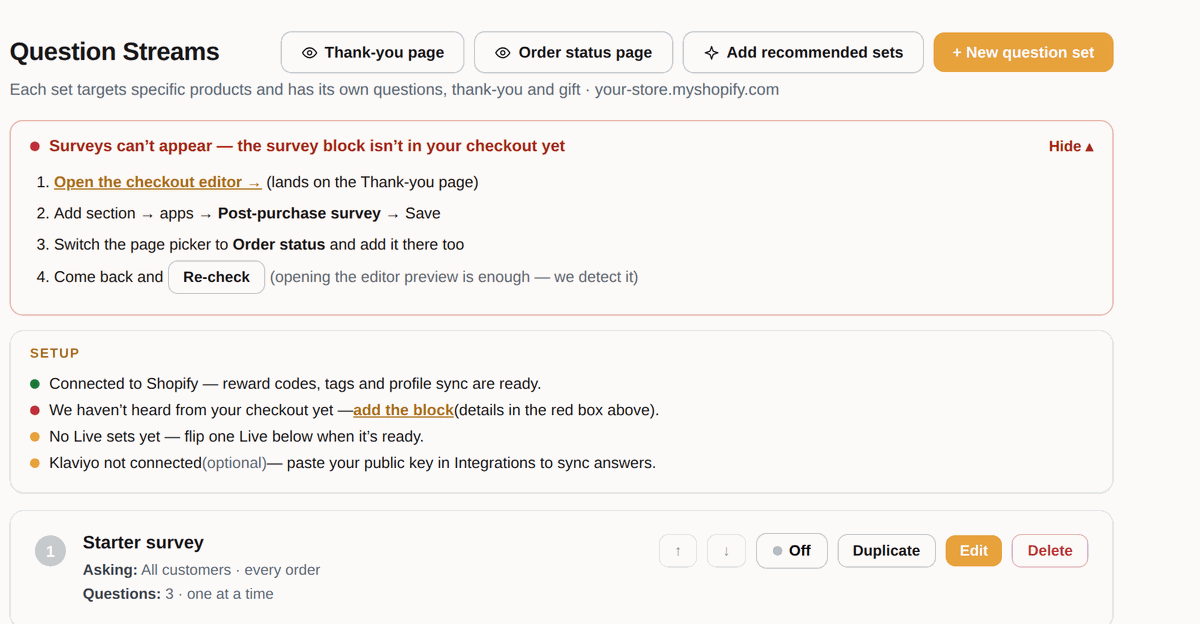
Until the block is placed, the app shows you the same steps at the top of its main page, with a link that opens the checkout editor on the right page:
The starter template gives you three questions to edit. Targeting sits right under the set's name:
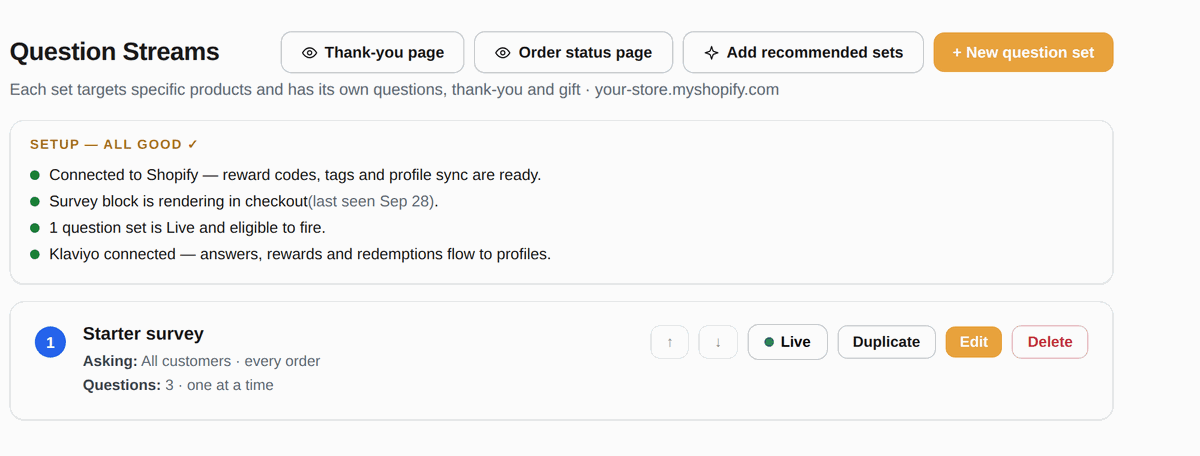
When every line in the setup box is green, the survey is live:
Do these steps on your own store
Free plan, one set of three questions, and the starter template is one click.
Give it a week, then read the answers. For what to ask beyond the starter three, use our list of 30 post-purchase survey questions, which has answer options you can paste in.
If the survey doesn't show
Check these in order
Most "it's not showing" cases are one of these.
Can you do it without an app?
Two ways, both with trade-offs:
- Build your own extension. A developer can write a checkout UI extension for the Thank you and Order status pages; Shopify publishes a survey tutorial. You'd also need to build storage, reporting and the Klaviyo sync yourself.
- Link to a form from the order confirmation email. Free and quick, but far fewer people answer an email than a question on the page they're already looking at, and the answers aren't tied to the order unless you pass the order number in the link.
For most stores an app is quicker and cheaper than either. If you're choosing one, we priced five of them at different order volumes in Fairing alternatives.
Frequently asked questions
Does Shopify have a built-in post-purchase survey?
Do I need Shopify Plus to add a survey to the Thank you page?
Can I still use Additional scripts for a survey?
How do I test the survey without placing an order?
Will the survey match my checkout design?
How many questions should a post-purchase survey have?
Set it up in the next 15 minutes
Free plan with one set of three questions. The starter template is one click, and the app tells you if the block isn't placed yet.